
How can we help you?
Edit your page with the visual editor
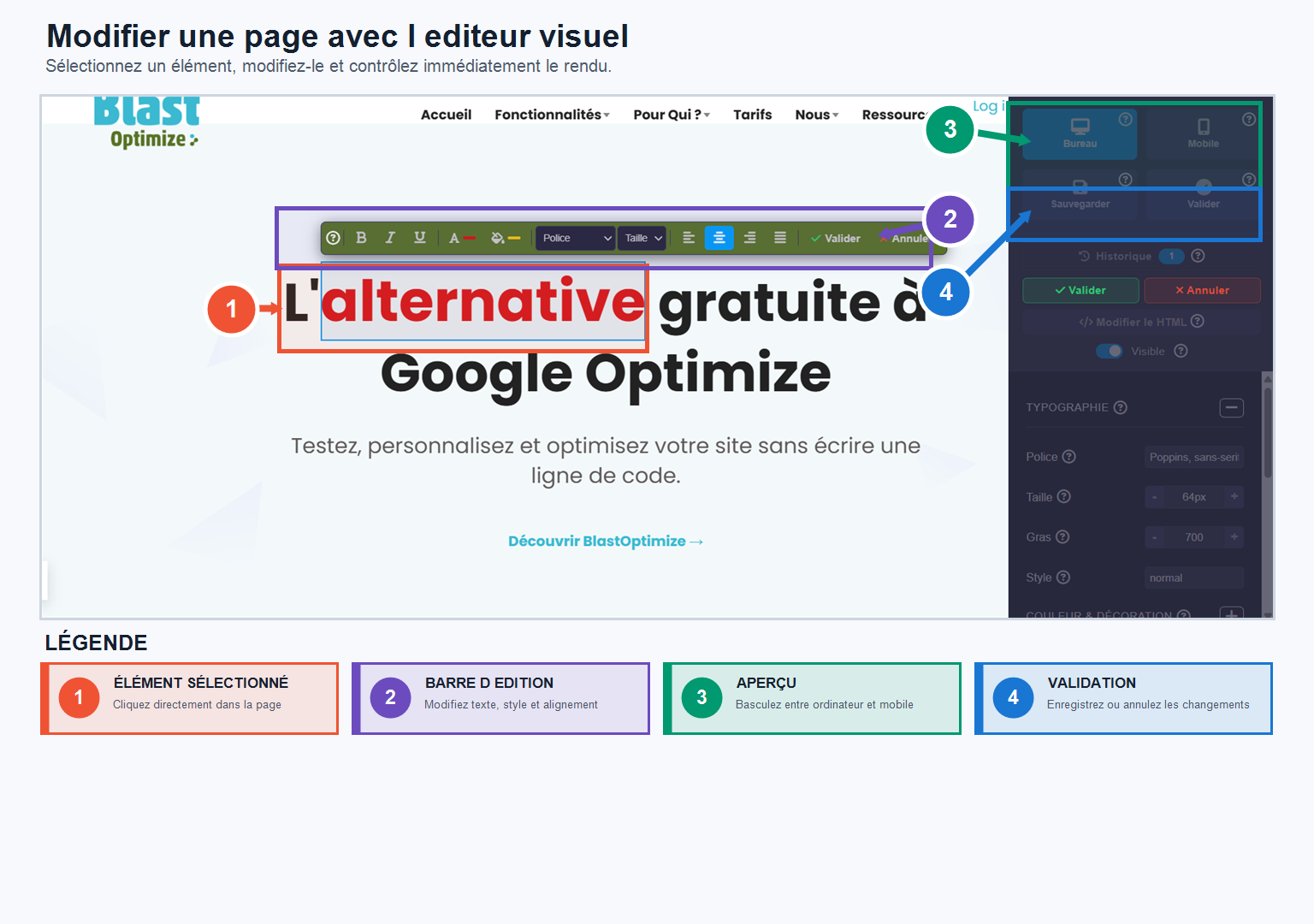
To modify an element, select it directly in the editor: an editing bar appears with the available parameters.
What you can change:
- Text : directly modify the content of an element (for example the text of a button).
- HTML : for advanced modifications not available in the visual editor.
- Visibility : Show or hide an element to test a version with or without a specific block.
- Typography : font, text size, style and other display settings.
- Colors : select the element and then choose the new color (some dynamic elements may require a modification in the code).
- Spacing : space between letters, between lines, margins and spacing around elements.
- Alignment left, center or right.
- Dimensions : width, height and margins around the element.
BlastOptimize also retains a change history, to find the changes made to your variant during your editing session.
At any time you can switch to the mobile preview to verify that your changes remain readable and consistent on smartphones — an important step before launching your experiment.
When to use Page Edit?
Page Edit is ideal for quick testing of an offer, title, button, color, or other element of a landing page. You can create multiple proposals without requiring the production of entirely new pages.
Instead, use Split URL when you want to compare separate landing pages with different structures or URLs.
Best practices before launch
- Preview each variant on desktop and mobile.
- Check that the forms, links and interactive elements are still working.
- Control global tracking and goals.
- Save a stable version before making any major changes.