

Configure your links/UTM for Facebook Ads and Google Ads
When you serve a BlastOptimize experience from Facebook Ads or Google Ads, you can automatically pass your campaign information into your variant URLs.
This configuration allows you to retain your UTM parameters, identify the advertisement that triggered the click, and measure the performance of each variant.
Configure your settings in BlastOptimize
Avoid manually adding UTM parameters to the URLs of your various landing pages.
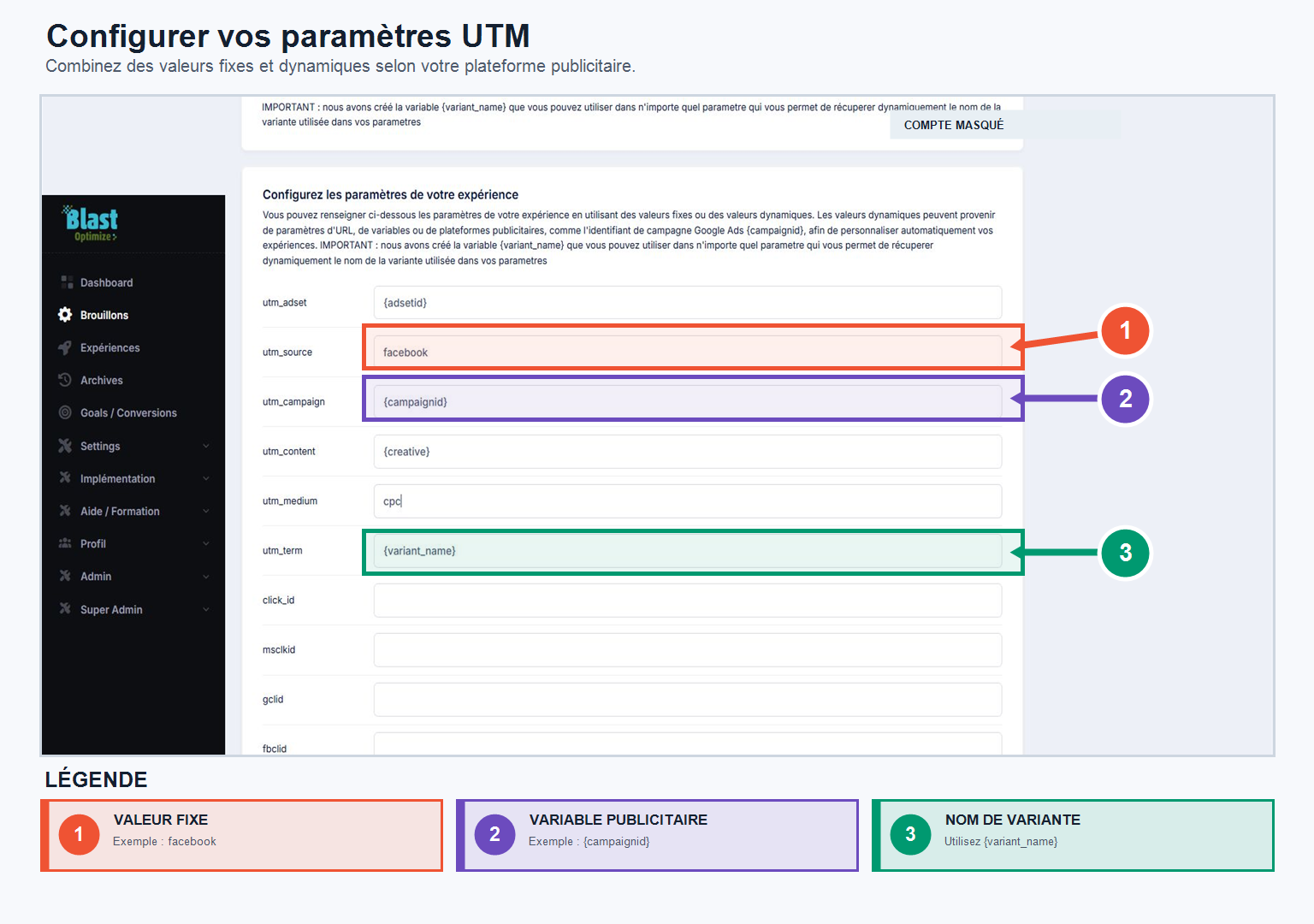
In your experience settings, directly add the information you wish to convey:
utm_source;utm_medium;utm_campaign;utm_content;utm_term;- the campaign or click identifiers needed for your tracking.
You can use a fixed value, for example Facebook Or Google, or a dynamic value provided by the advertising platform.
Use Facebook Ads dynamic variables
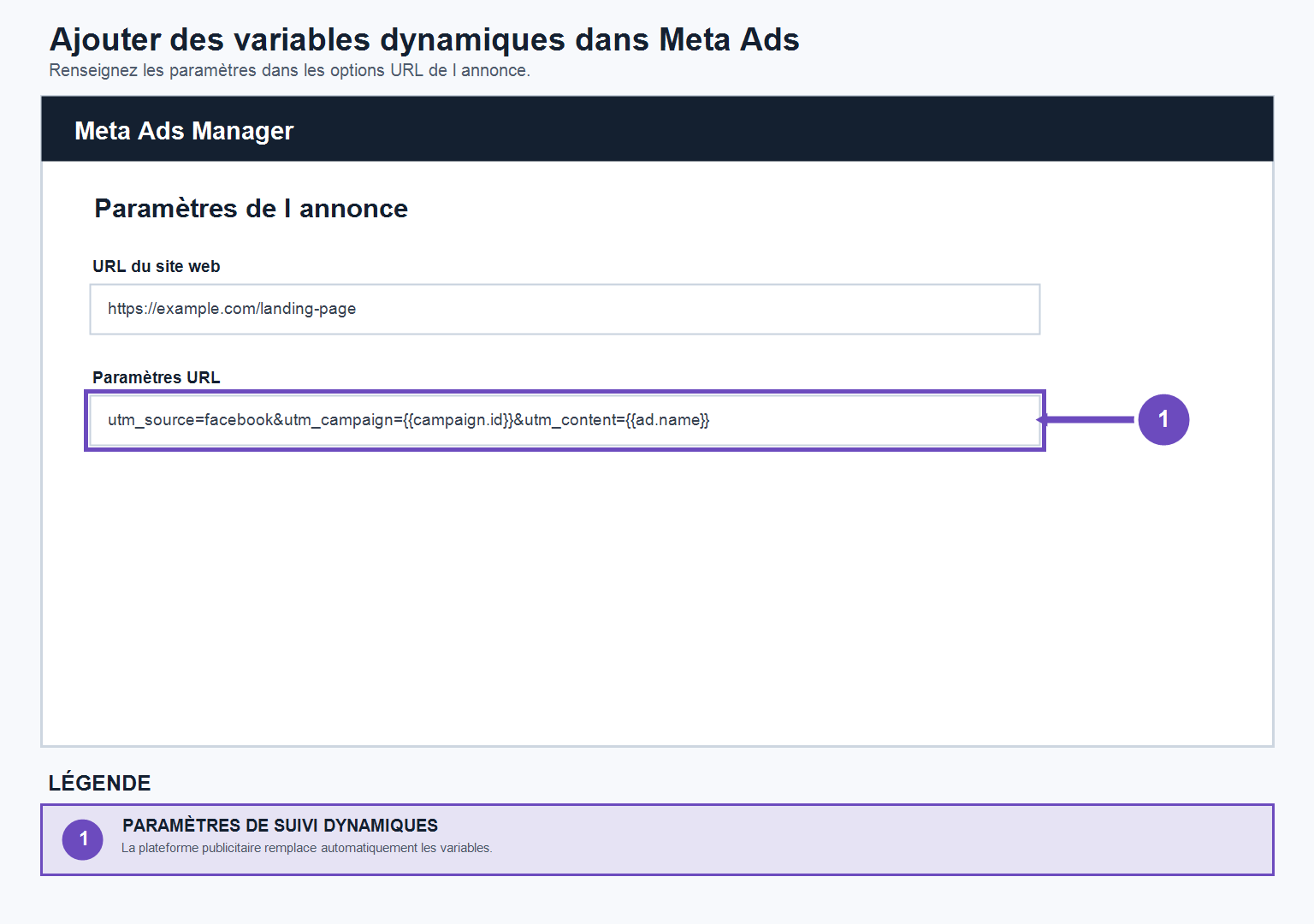
Facebook Ads uses variables placed between double curly braces.
You can, in particular, use:
{{campaign.name}}to transmit the name of the campaign;{{campaign.id}}to transmit their identifier;{{adset.name}}And{{adset.id}}to identify the set of advertisements;{{ad.name}}And{{ad.id}}to identify the advertisement;{{investment}}to find out its location;{{site_source_name}}to identify Facebook, Instagram or other Meta source.
Example :
utm_source=facebook utm_medium=social utm_campaign={{campaign.name}} utm_content={{ad.name}} utm_adset={{adset.name}}Facebook automatically replaces these variables when the ad is displayed.
Use the native Google Ads settings
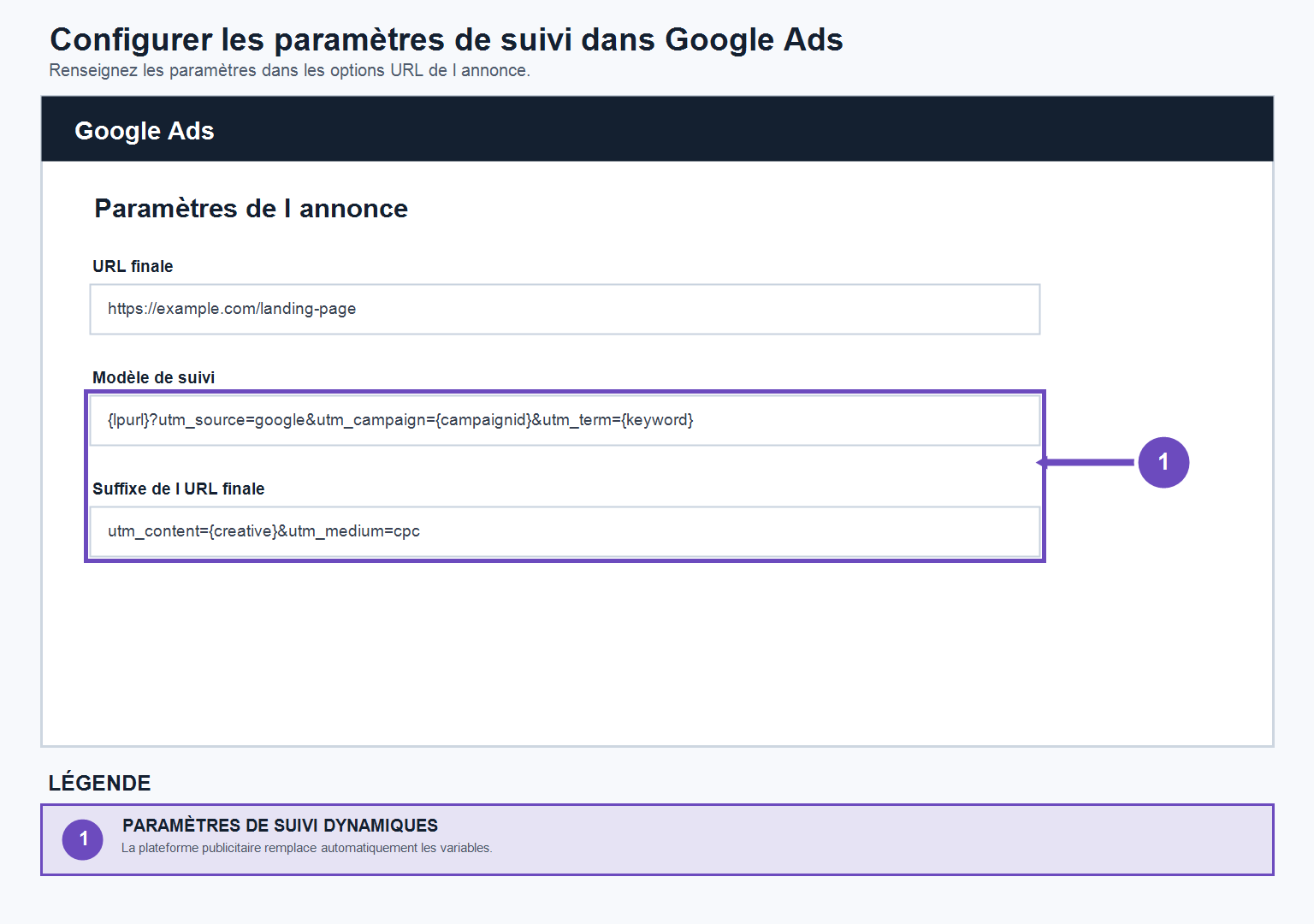
Google Ads uses a different syntax, with only one pair of curly braces.
For example, you can transmit:
{campaignid}for the campaign identifier;{adgroupid}for the ad group identifier;{creative}for the ad ID;{keyword}for the keyword;{network}for the broadcast network.
Example :
utm_source=google utm_medium=cpc utm_campaign={campaignid} utm_content={creative} utm_term={keyword}Always use the syntax recognized by the advertising platform. A Facebook variable will not be interpreted by Google Ads, and vice versa.
Identify the displayed variant
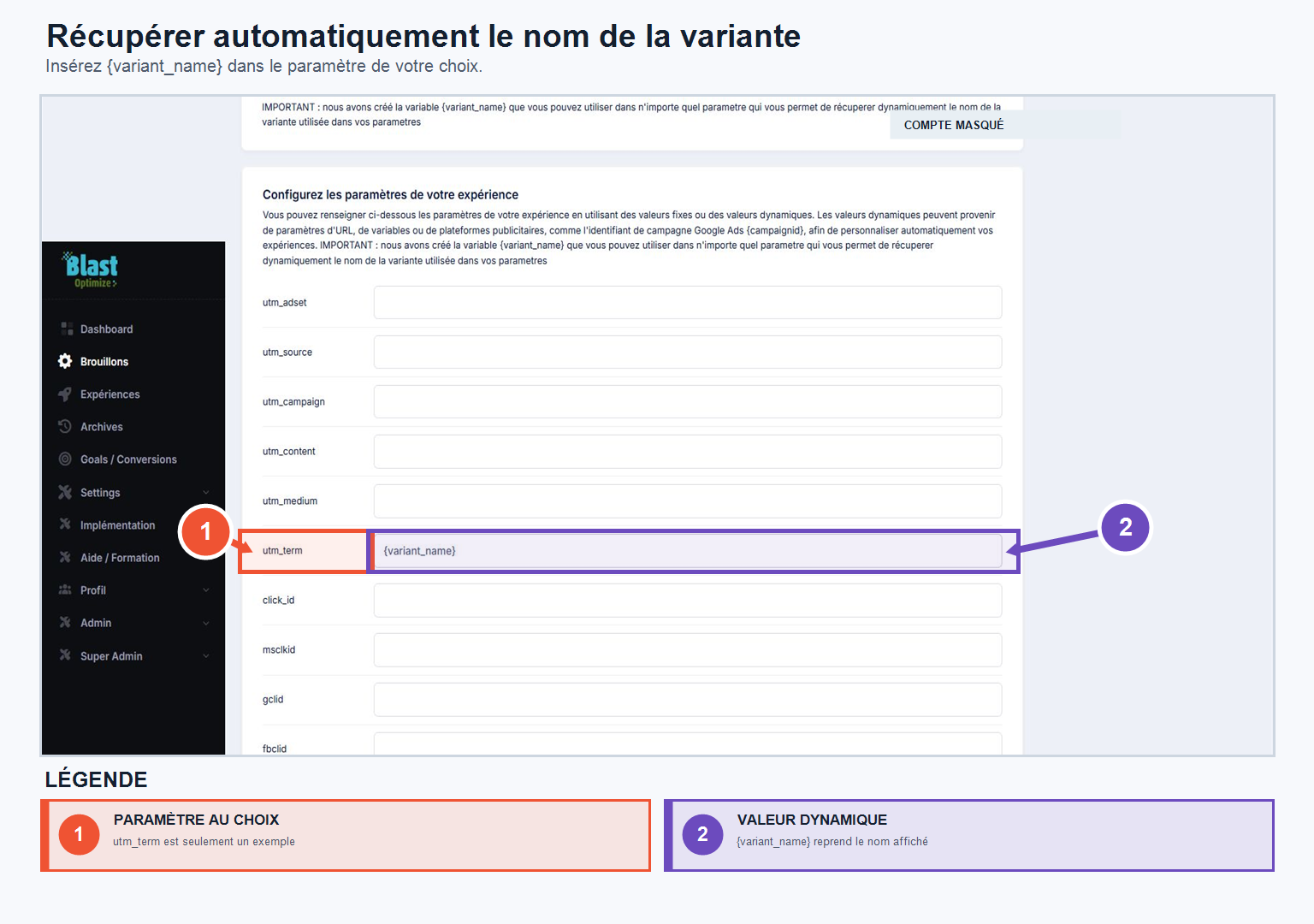
Add the following variable to pass the name of the variant served by BlastOptimize:
{variant_name}For example, you can use it in the setting utm_term :
utm_term={variant_name}This information allows you to retrieve the displayed landing page and compare the results of your variations in your analysis tools.
Copy the link from the Publish section
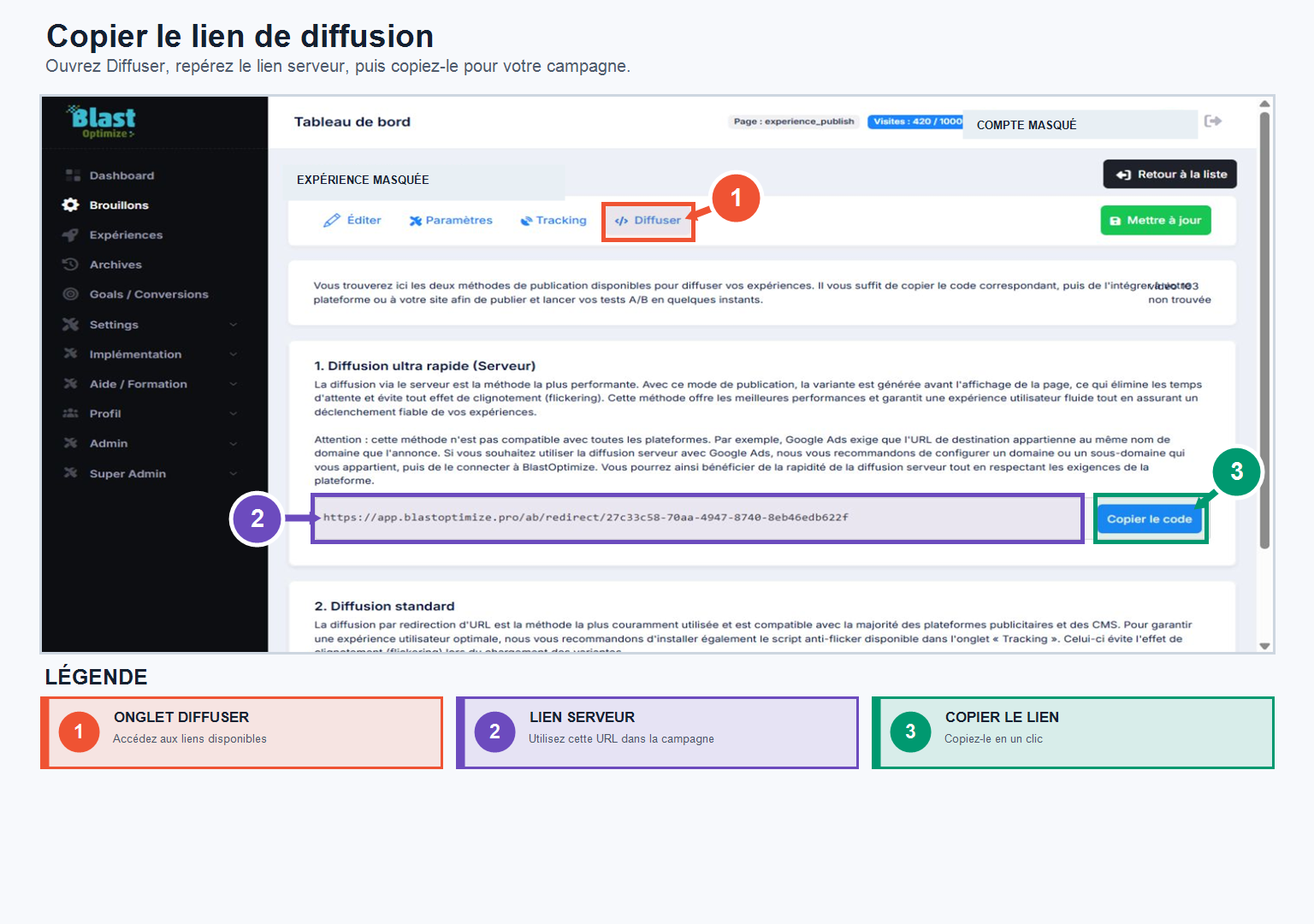
Once your settings are saved, open the section Publish from your experience and directly copy the link generated by BlastOptimize.
Then paste this link into Facebook Ads Manager or Google Ads.
Avoid opening the link in your browser before copying it. The browser may encode certain special characters.
For example :
{{campaign.name}}may appear in this form:
%7B%7Bcampaign.name%7D%7DTo keep variables in their original format, always use the copy button provided by BlastOptimize.
Update your listings after a change
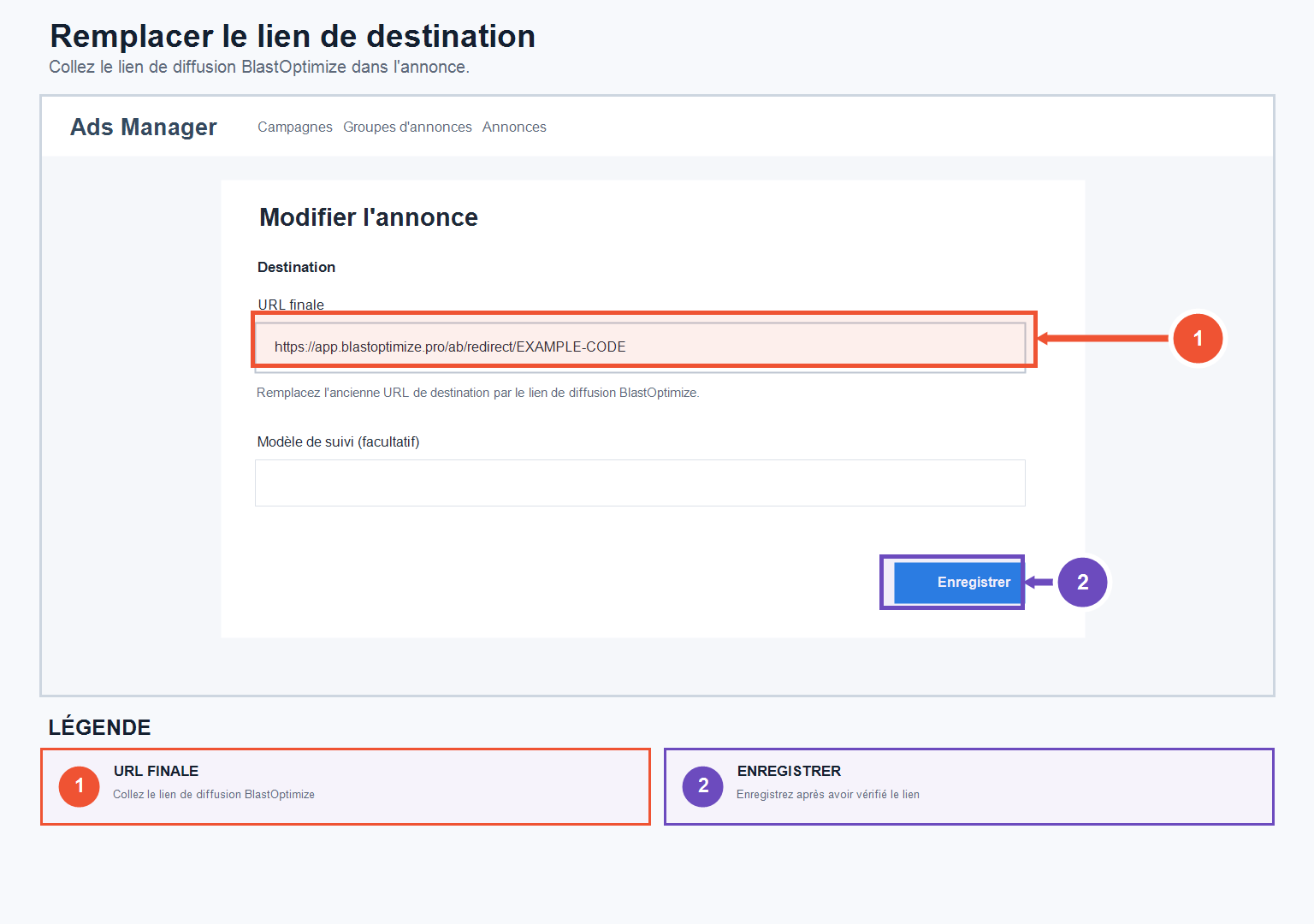
When you change URL settings in BlastOptimize, check the link used in your advertising campaigns.
An ad that has already been created can continue to use the old URL. If BlastOptimize generates a new link, copy it again and replace the URL in Facebook Ads or Google Ads.
Check your tracking before launch
Before activating your campaign:
- open the link from a test ad;
- check that the redirection is working;
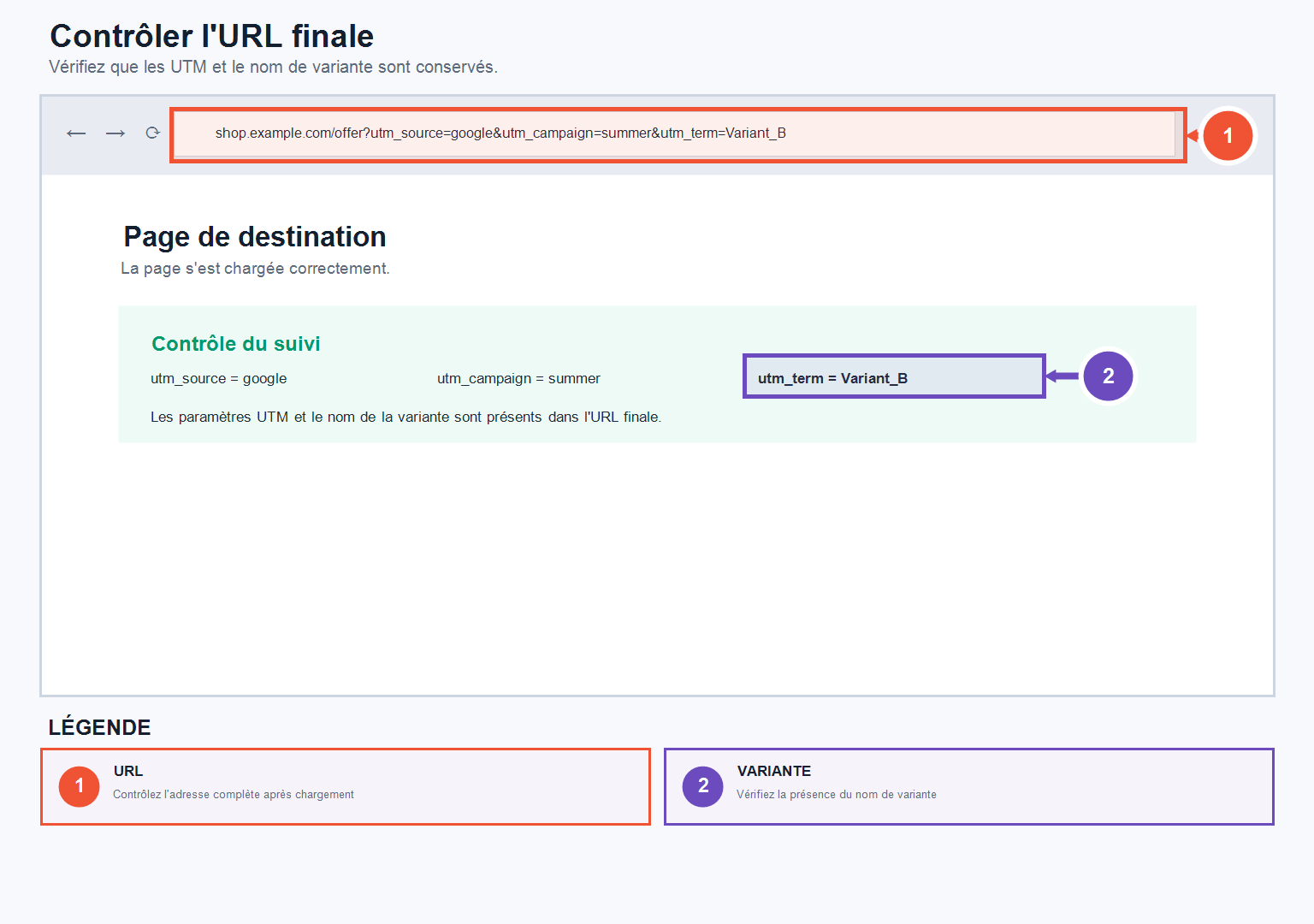
- check the parameters present in the final URL;
- check that the correct variant is displayed;
- perform a test conversion;
- Control the conversion tracking in BlastOptimize, your advertising network and analytics tool.
Key points to remember
Configure the UTM parameters in BlastOptimize, use the variables specific to each ad network, and copy the link directly from the section Publish.
This method allows you to maintain consistent tracking between BlastOptimize, Facebook Ads, Google Ads and your analytics tool, without separately modifying the URLs of all your variations.